
Every Claude Code Concept Explained for Normal Trader (2026 Guide)
Claude Code explained for Investor, Trader, Crypto fan

You’re probably staring at Claude Code thinking:
“How is this supposed to make my life easier?”
A black screen, a blinking cursor, and terms like context window, sub-agents, and MCP servers.
None of it feels built for a trader without a coding background.
After 900+ hours inside, I’m giving you the shortcut I wish I had.
27 concepts, explained in under 60 seconds each, through the lens of a trend-following trader.
1. What is Claude Code?
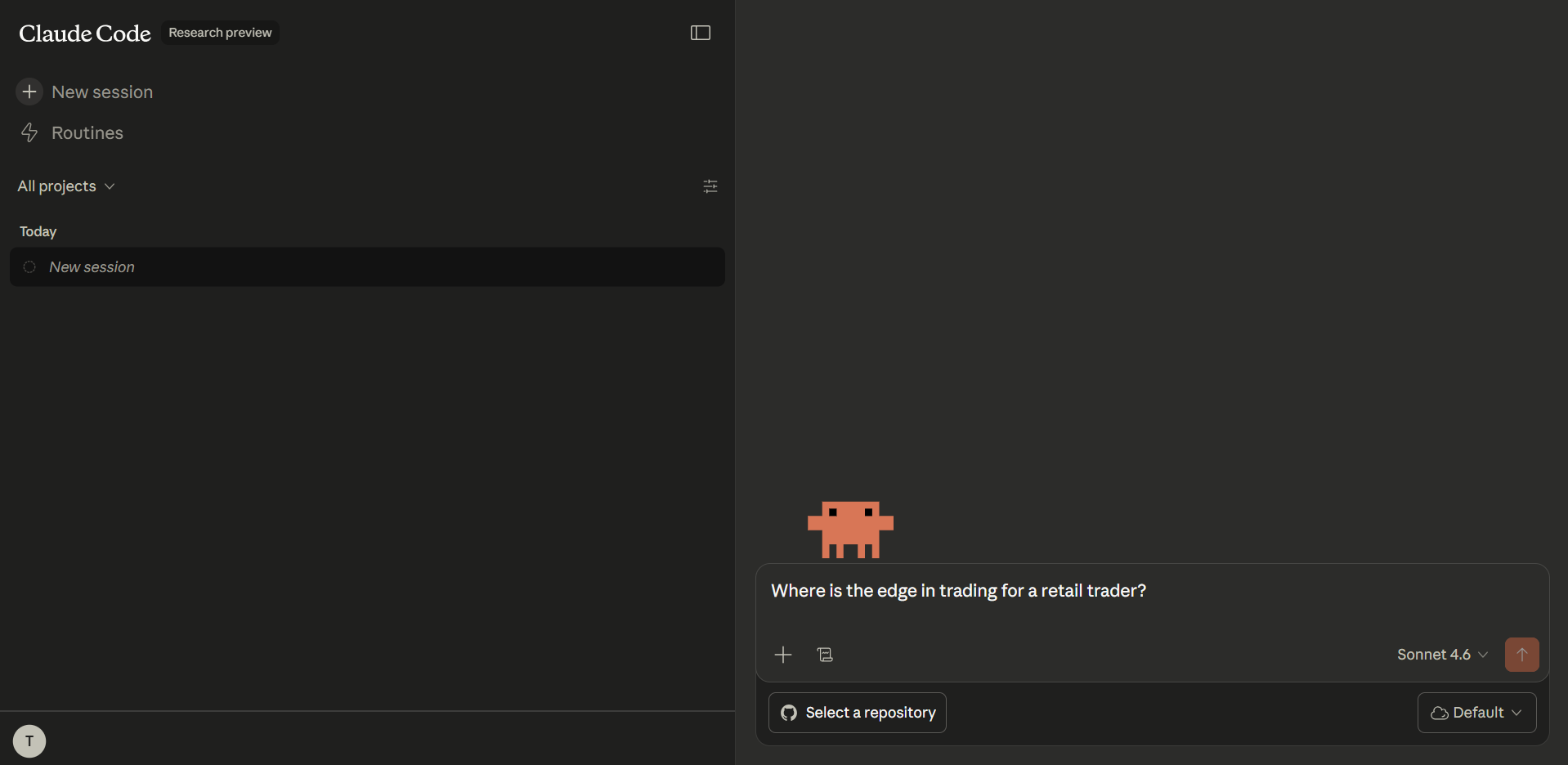
Most people already know chatbots like ChatGPT or Gemini. You type a message, you get a reply. But those tools can only talk to you. Claude Code is entirely different. It can create files, build backtest scripts, and install packages on your machine all from a simple conversation in plain English. Chatbots give you advice; Claude Code takes actions.
2. The Terminal
Claude Code doesn’t run in a browser like chat.
It runs in the terminal that black screen with white text that looks so cryptic you’ve probably seen developers use. But the terminal is actually really simple. It’s just another way to talk to your computer. Instead of clicking buttons, you type commands.
With Claude Code, you only need to know how to open it (claude), how to close it (Ctrl+C twice), and how to clear its head.
3. Prompts
A prompt is simply what you type to tell Claude Code what to do.
You write them in plain English. Like “build me a trend-following backtest for the S&P 500.”
There’s no special syntax. Just describe what you want. The more specific you are, the better the result.

Instead of “build me a backtest,” say “build me a daily trend-following backtest using the 200-period EMA and 2% risk.” Better prompts, better results.
4. Permissions
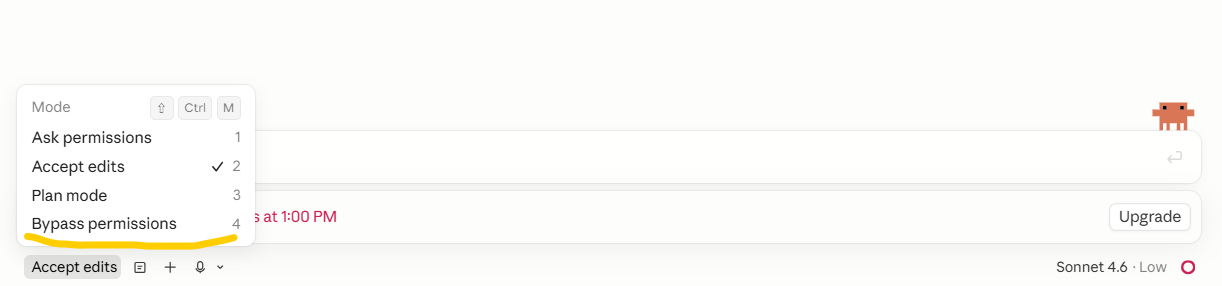
This is an incredibly important concept because Claude Code can make actual changes to your computer. It can create files, run commands, and even delete stuff. By default, it asks for your permission before it does anything significant. You stay in control.
5. Pre-approving Safe Stuff
If you’re clicking “approve” every 10 seconds during a backtest project, it really kills your flow.
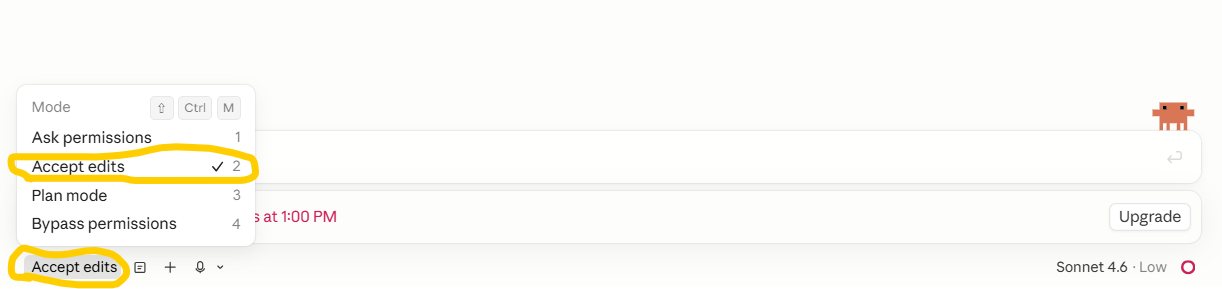
There is a better way. You can pre-approve specific “safe” actions like reading your data files or running the dev server so Claude works faster without stopping you constantly.
6. Tool Use
What makes Claude Code more powerful is that it has access to tools. It has built-in capabilities like “Read” (to look at your files), “Write” (to create new ones), and “Bash” (to run commands like installing backtest libraries). You don’t need to tell Claude which tool to use.
You just describe the goal, and Claude picks the tools automatically.
7. Context Window
This is Claude’s short-term memory.
It’s everything Claude can see and think about right now.
Every message you send and every file Claude reads lives inside this window. But it has a limit.
8. Context Rot
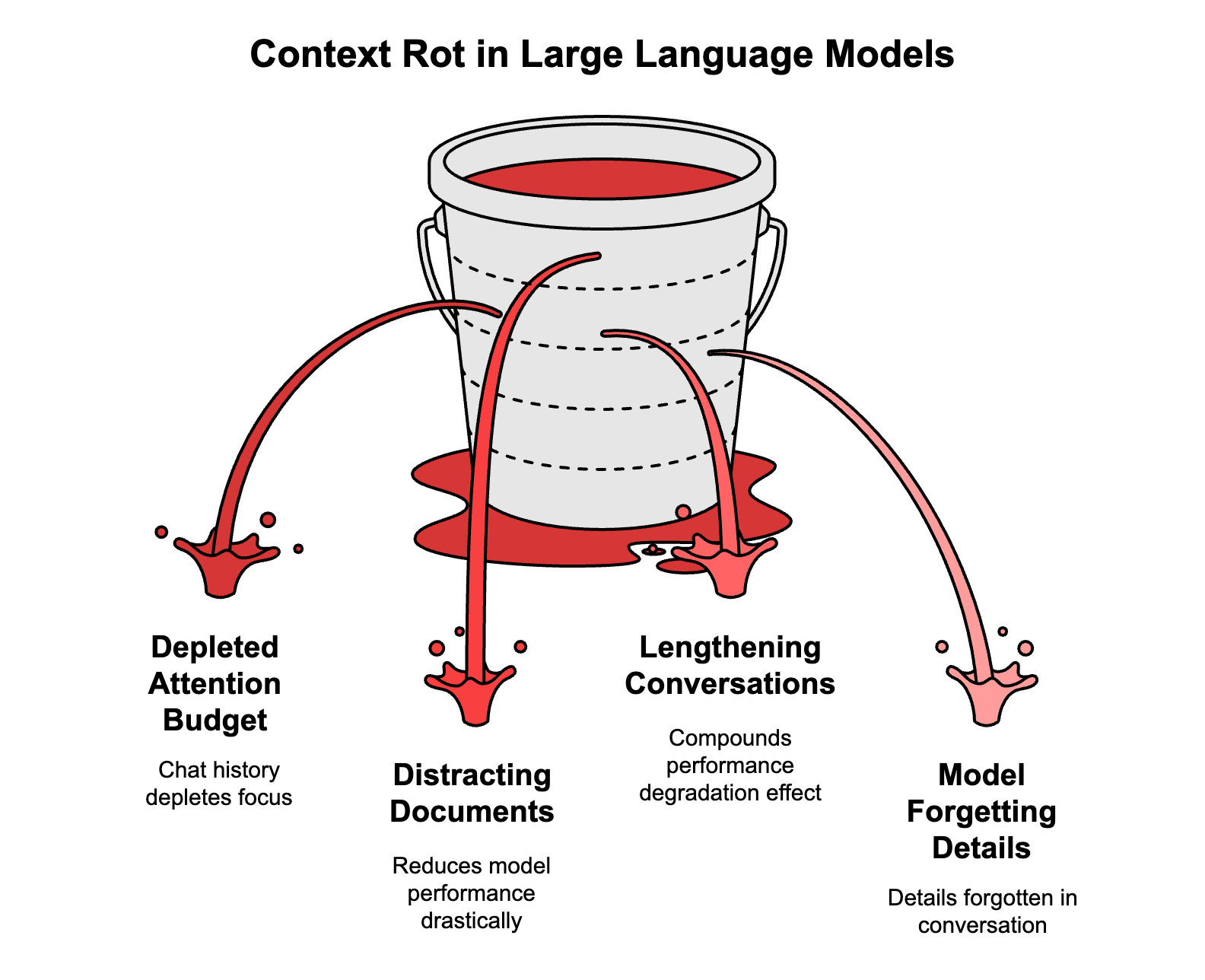
When a conversation gets too long, too much info piles up and Claude starts losing track of the earlier stuff you said.
This is “context rot.”
It’s when outputs get worse and Claude seems to forget your trade rules.
The fix is simple: keep your conversations focused and short. i mean short not bearish ;)
9. /Clear and /Compact
These are how we manage context. (If you are using terminal not an App)
If Claude gets confused mid-session, you can use the /compact command to summarize the key info and clear out the noise. Or use /clear to wipe the conversation for a fresh start on a new strategy.
10. Conversation History
Claude Code automatically saves your sessions.
If you close your laptop and come back the next day, you can just type claude --resume.
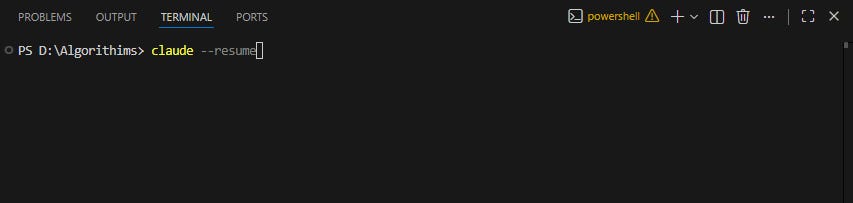
It drops you straight back into the same project with all the context of the previous conversation. You pick up right where you left off.
11. Token Usage
When you use Claude Code, it costs money, and that’s calculated through token usage. A token is roughly 3/4 of a word. Every prompt you send and every file Claude reads uses tokens.

You can keep an eye on your spending using the /cost command in the terminal.
12. CLAUDE.md
Every time Claude starts working on your project, it needs to know how you want to get things done. Without guidance, it’s going to guess and guessing leads to crap results. CLAUDE.md is a simple markdown file where you write your preferences and rules.
“We only use US stocks,” “Always include a 2% stop loss.” Claude reads this first every single time. It’s the most important file you’ll create.
13. Auto-Memory
Claude Code also has an auto-memory file that stores facts that persist between your different sessions.
If you always work in Python or prefer a certain trading style, it’s going to be automatically saved to memory. Claude learns your preferences over time, not just within a single chat.
14. Compact Context
We talked about context length earlier. If you don’t manage it, Claude starts losing track. Claude Code can actually do this automatically.

When it gets to 85-95% full, it summarizes the key info and clears out the noise in the background without you doing anything.
15. Models
When people say “Claude Code,” they’re actually referring to a family of AI models. Sonnet is the all-rounder good at most things and reliable.
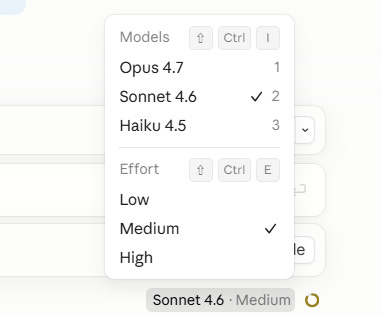
Opus is the most intelligent one for handling complex strategy problems that require serious thinking. You can switch between them mid-conversation by using the /model command.
16. Denying Access to Files
Not every file in your project should be passed to Claude. Some are massive and waste your context, and some contain sensitive data like API keys. You can add a “deny list” in your settings so Claude won’t even discover those files. They are completely off-limits.
17. Flags
Flags are options you use when you launch Claude Code. They let you customize how it behaves before it even starts. You can use flags to choose a specific model or to control which tools it has access to. They’re just launch shortcuts.
18. Extended Thinking
Some tasks are simple, but some need Claude to genuinely reason through a problem before it acts. Extended Thinking gives Claude a dedicated “reasoning budget” in tokens to think through a complex build step-by-step. It’s on by default and ensures Claude plans the work before taking any actions.
19. Slash Commands
Typing a forward slash triggers a specific action, like /init to set up a project or /help to see all your shortcuts. Think of slash commands as repeatable shortcuts for tasks you do on a day-to-day basis.
The Professional Trader’s Edge
Everything you’ve read so far is the baseline. It’s what 99% of people using Claude Code are doing. But if you want to use this to build serious trading infrastructure, you need to step into the “Advanced” side of the tool.
The next 8 concepts cover how to move from talking to Claude to building an autonomous system.
We’re talking about the EDGE. This is the industrial-grade side of the tool. ⬇️